|
User Guide > Working with behaviors > Working with events and actions > The list of actions > Plug-ins actions
Use the "Plugins actions" group of an action to manage the plugin object at runtime.
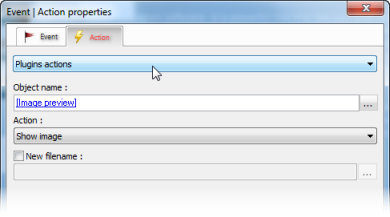
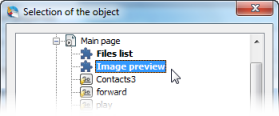
1. Select the desired Plug-in object by using the select object button  . .
2. Select one of the following actions :
The Image preview plug-in :
| • | Show image - loads and shows a new file that is specified in the "New filename" field to the Image preview object. |
The Slide show plug-in :
| • | Show image - loads and shows a new file that is specified in the "New filename" field to the Slide show object. |
| • | Play image - start the slideshow. If the "New filename" field is specified, the new file will be added to the Slide show object. |
| • | Stop play - stops a playback. |
| • | Go next - shows next image in the Slide show object. |
| • | Go back- shows previous image in the Slide show object. |
| • | Go first - shows first image in the Slide show object. |
| • | Go last - shows last image in the Slide show object. |
The Image list plug-in :
| • | Show image - loads and activates a new file that is specified in the "New filename" field to the Image list object. |
| • | Go next - activates next image in the Image list object. |
| • | Go back- activates previous image in the Image list object. |
| • | Go first - activates first image in the Image list object. |
| • | Go last - activates last image in the Image list object. |
The File list plug-in :
| • | Browse folder - sets the current folder to browse that is specified in the "New filename" field. |
| • | Switch layout - switches between the grid mode and the list mode. |
| • | Go home - sets the current folder to browse that is specified as default. |
| • | Go up - goes to the top-level folder. |
| • | Go next - goes to the next folder in history. |
| • | Go back - goes to the previous folder in history. |
|